> ## Documentation Index
> Fetch the complete documentation index at: https://apidocs.writesonic.com/llms.txt
> Use this file to discover all available pages before exploring further.
# Integrating with Wordpress
> This guide walks you through the process of implementing AI Traffic Analytics on your Wordpress website.
## Prerequisites
* An active Writesonic account
* Admin access to your Wordpress website
## Start in Writesonic
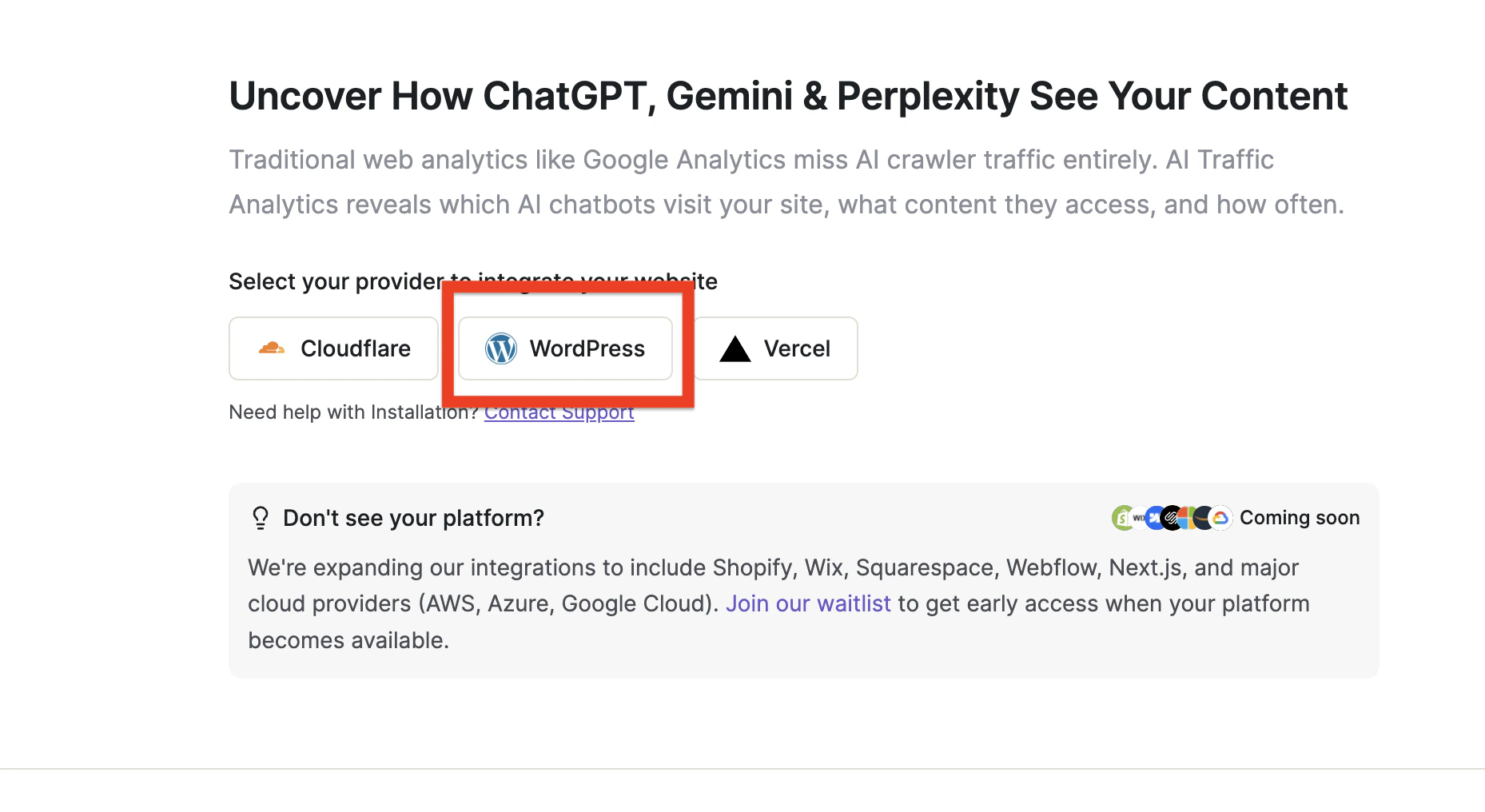
1. Head over to the [AI Traffic Analytics page](https://app.writesonic.com/geo/ai-traffic-analytics) on Writesonic
2. Click on **"Wordpress"**
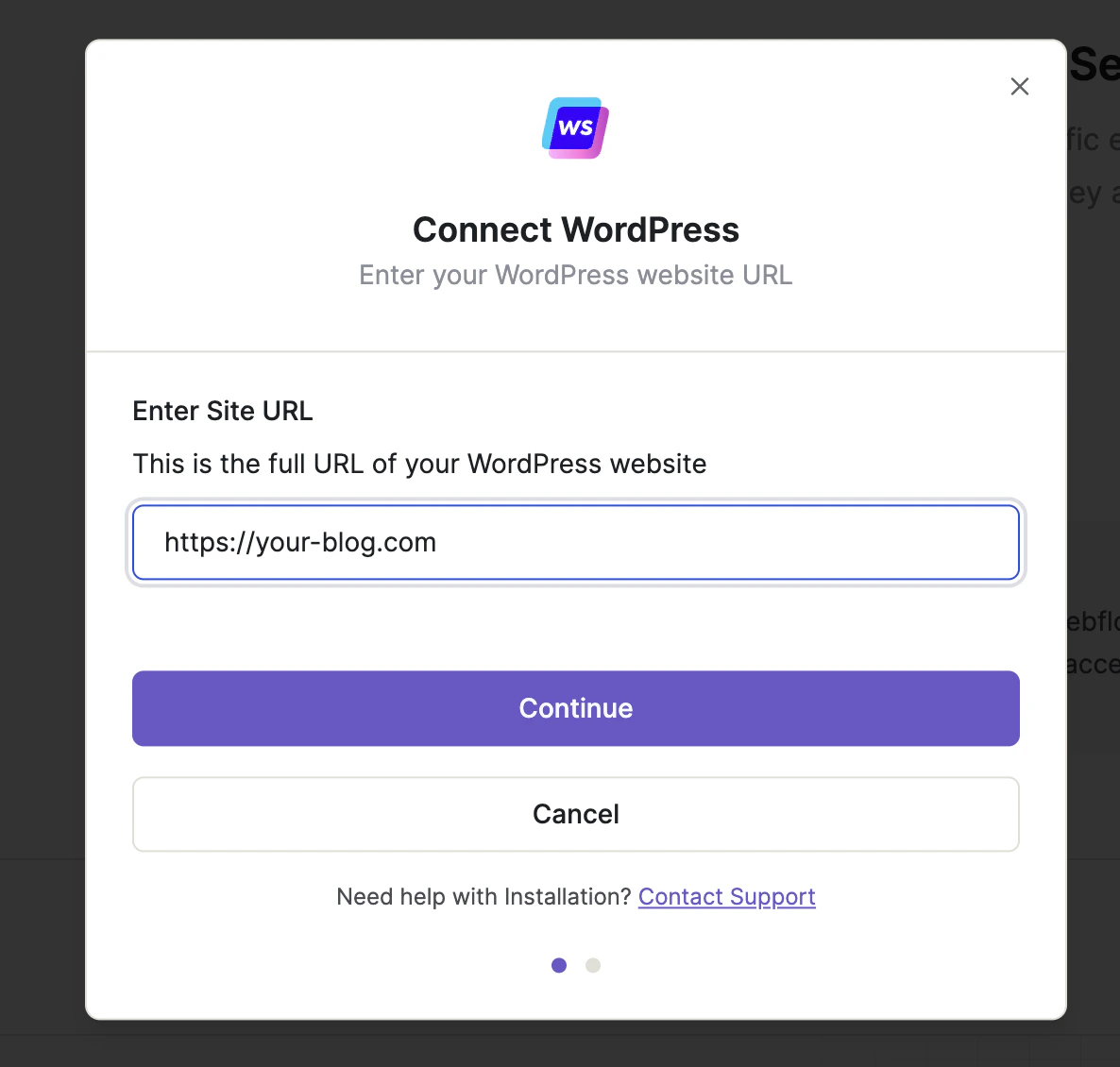
 3. Enter your WordPress website domain and click "Continue"
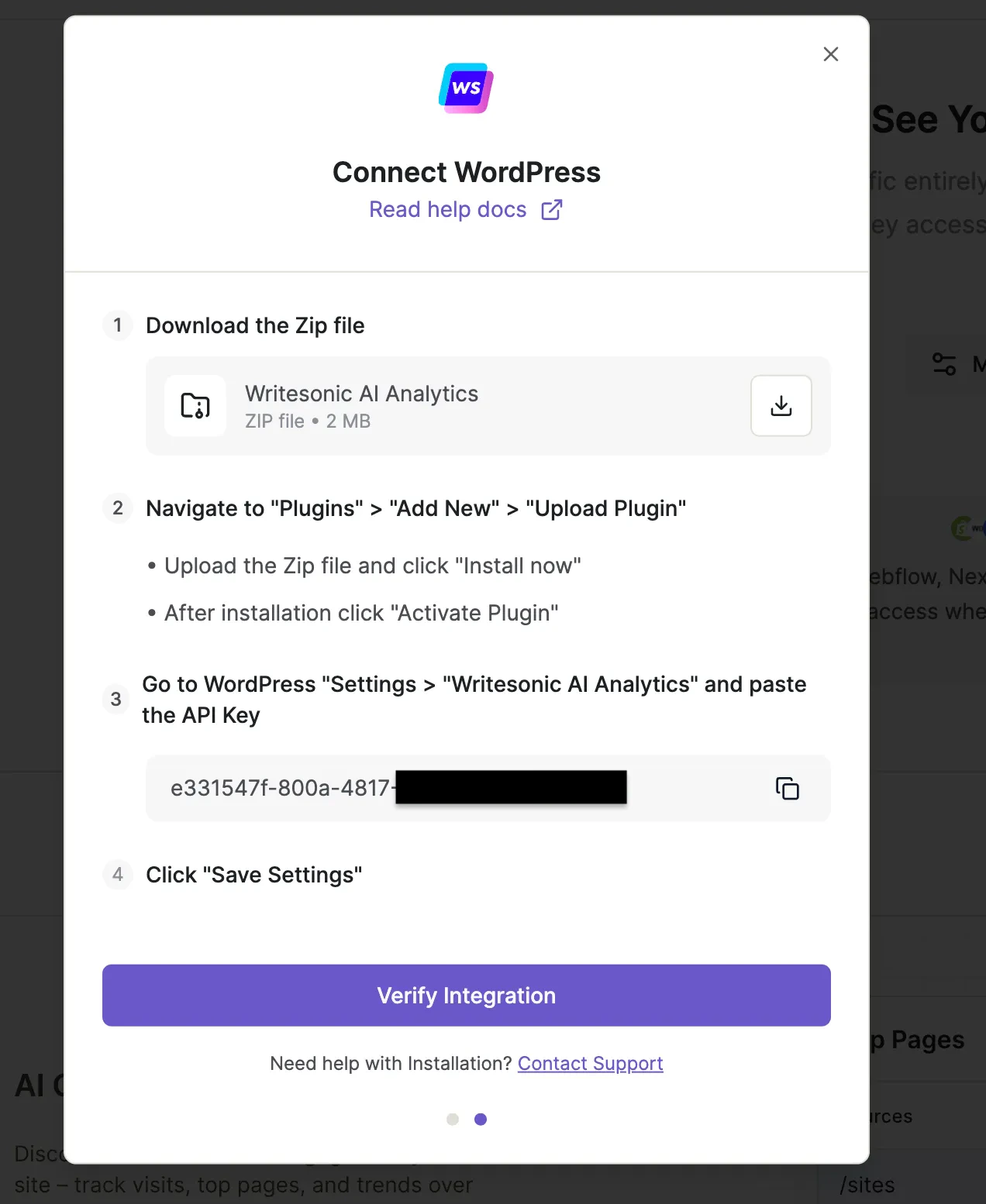
 4. Writesonic will generate a unique API key for your website. Keep this page open as you'll need this API key during the plugin installation.
 ## Install the Wordpress Plugin
1. Download the Writesonic AI Analytics plugin by clicking the "Download" icon next to the zip file
2. Log in to your Wordpress admin dashboard
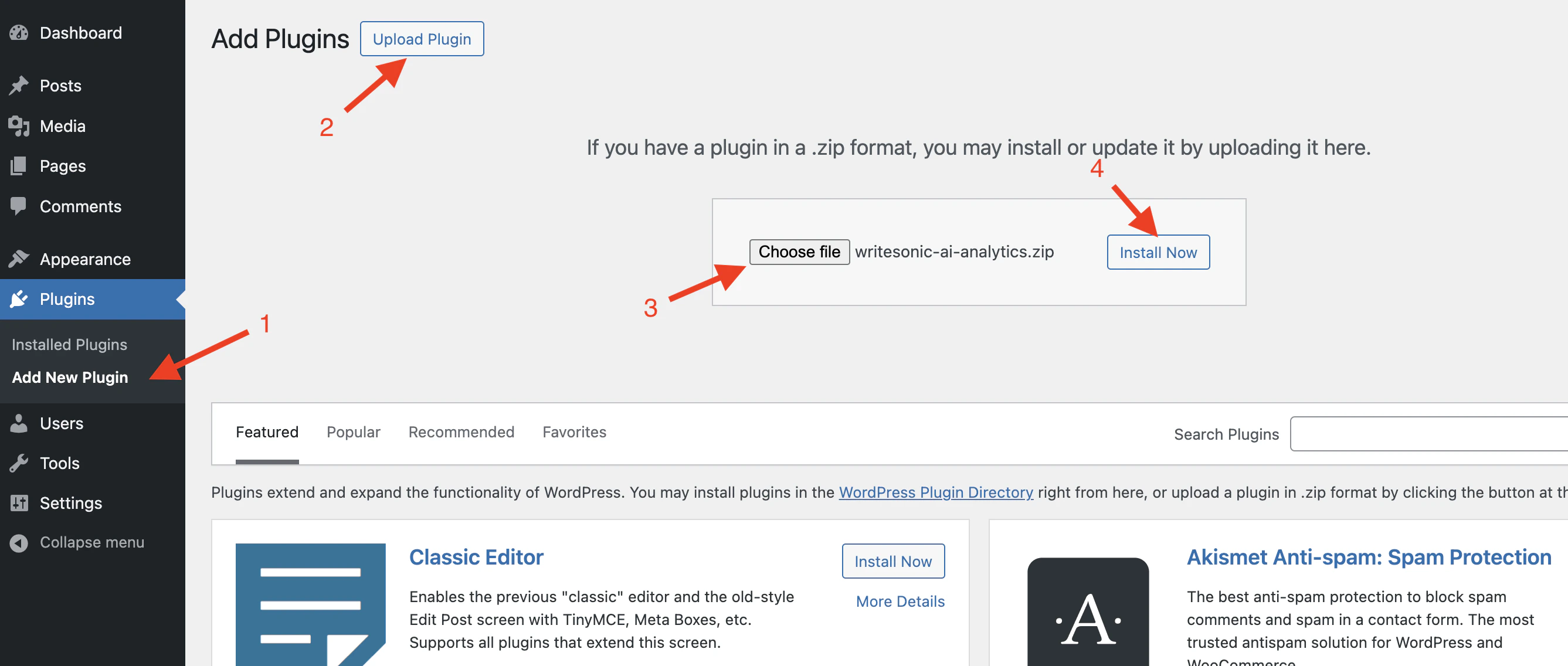
3. Navigate to Plugins > Add New Plugin > Upload Plugin
4. Choose the downloaded ZIP file (writesonic-analytics.zip) and click "Install Now"
## Install the Wordpress Plugin
1. Download the Writesonic AI Analytics plugin by clicking the "Download" icon next to the zip file
2. Log in to your Wordpress admin dashboard
3. Navigate to Plugins > Add New Plugin > Upload Plugin
4. Choose the downloaded ZIP file (writesonic-analytics.zip) and click "Install Now"
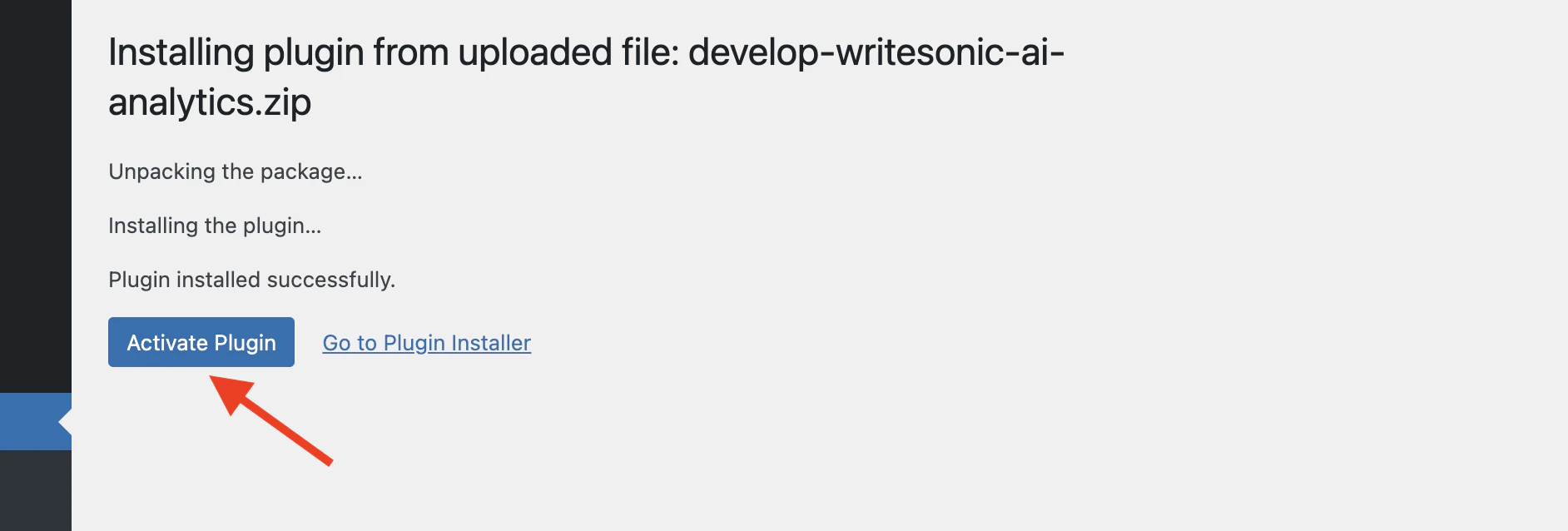
 5. After installation completes, click "Activate Plugin"
 ## Configure the Plugin
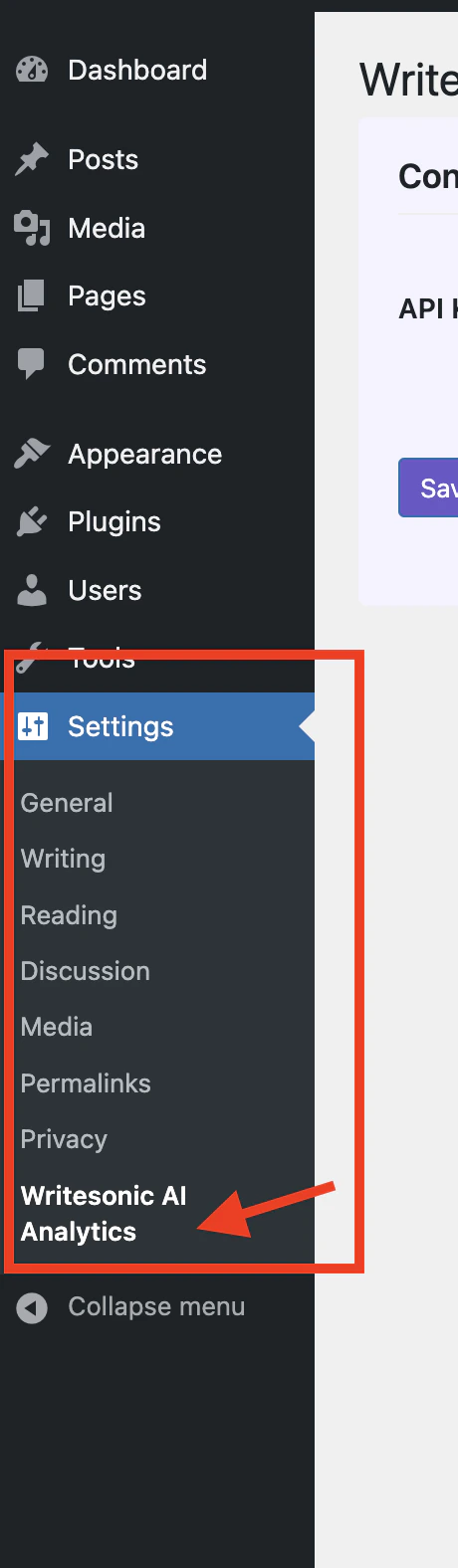
1. Once activated, navigate to Settings > “Writesonic AI Analytics” in your WordPress admin menu
## Configure the Plugin
1. Once activated, navigate to Settings > “Writesonic AI Analytics” in your WordPress admin menu
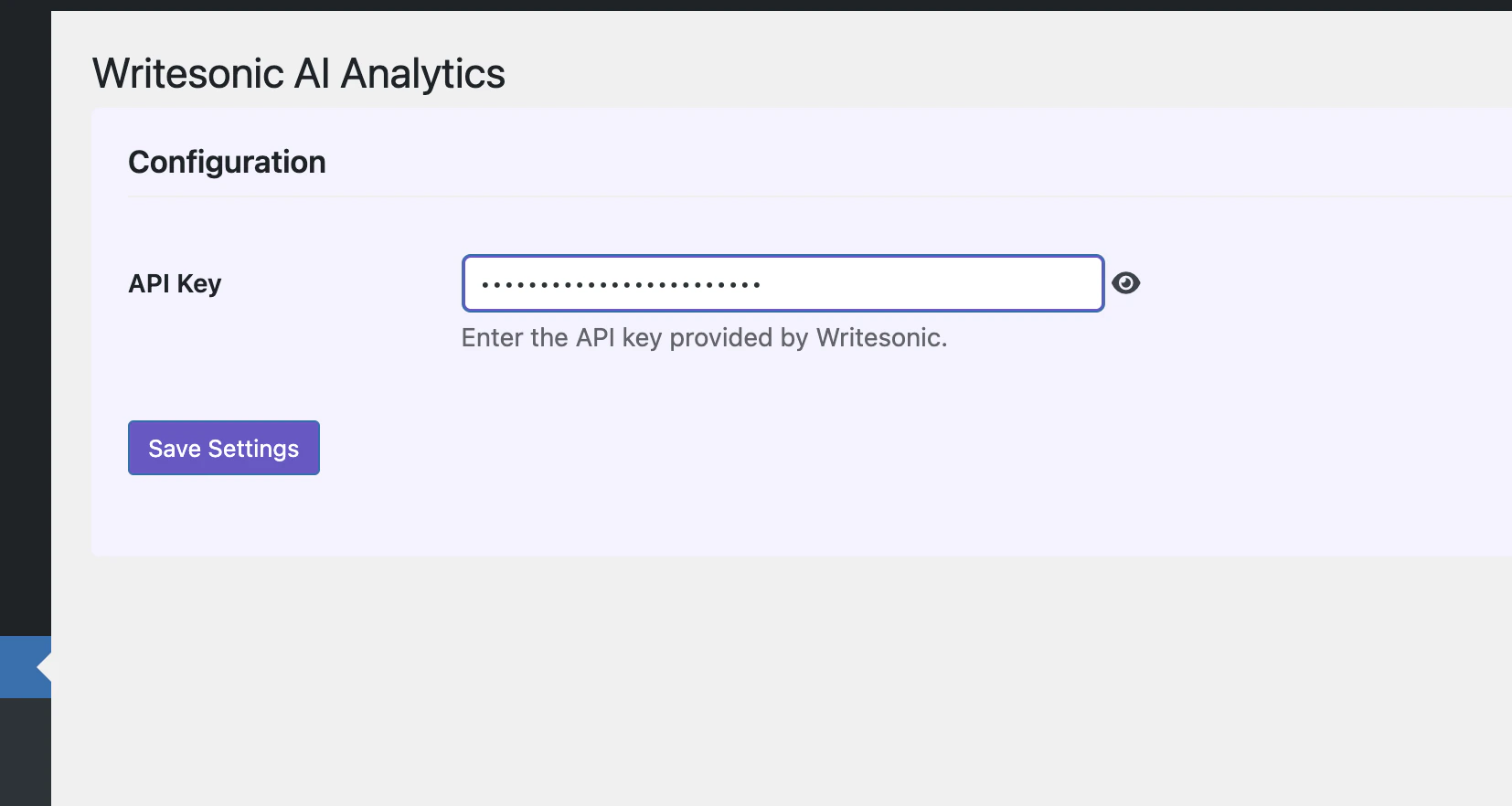
 2. On the settings page, enter the API Key that was provided in Phase 1
3. Click "Save Settings" to store your configuration
2. On the settings page, enter the API Key that was provided in Phase 1
3. Click "Save Settings" to store your configuration
 ## Verify Installation in Writesonic
1. Return to Writesonic (the page you kept open from Phase 1)
2. Click on "Verify Connection" to confirm that your Wordpress site is properly connected
## Verify Installation in Writesonic
1. Return to Writesonic (the page you kept open from Phase 1)
2. Click on "Verify Connection" to confirm that your Wordpress site is properly connected
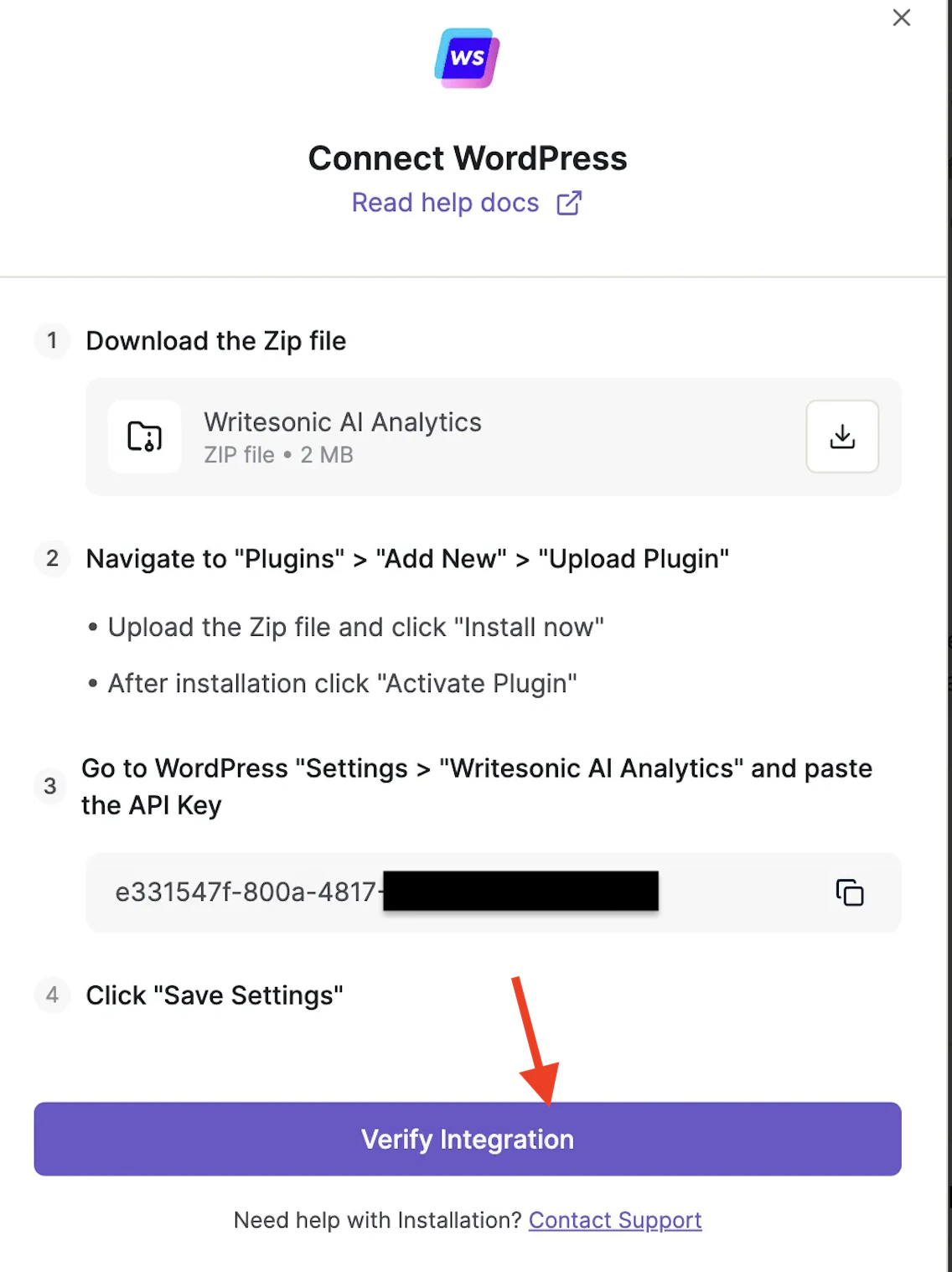 3. Once verified, you'll be redirected to your analytics dashboard. The process typically finishes in 1–2 minutes but may take up to 5 minutes.
## Troubleshooting
If you encounter any issues during setup:
* Ensure your API key is entered correctly
* Verify that your Wordpress site is publicly accessible
* Check that the plugin is activated
* If you have cloudflare setup which is routing traffic to your Wordpress, make sure that it is not overwriting the original request headers
* For assistance, contact [\[email protected\]](/cdn-cgi/l/email-protection#07747277776875734770756e73627468696e642964686a)
For more detailed debugging, please check out the [Troubleshooting and FAQs](https://docs.writesonic.com/docs/ai-traffic-analytics-troubleshooting-and-faqs) page.
## Uninstalling
If you need to remove the plugin:
1. Navigate to Plugins in your Wordpress admin
2. Deactivate the Writesonic AI Analytics plugin
3. Click "Delete" to completely remove it
Note: Uninstalling the plugin will stop data collection, but your existing analytics data will remain available under the AI Traffic Analytics section
***
***
[Integrating With Cloudflare](/docs/integrating-with-cloudflare)
[Integrating with Vercel Log Drains](/docs/integrating-with-vercel-log-drains)
3. Once verified, you'll be redirected to your analytics dashboard. The process typically finishes in 1–2 minutes but may take up to 5 minutes.
## Troubleshooting
If you encounter any issues during setup:
* Ensure your API key is entered correctly
* Verify that your Wordpress site is publicly accessible
* Check that the plugin is activated
* If you have cloudflare setup which is routing traffic to your Wordpress, make sure that it is not overwriting the original request headers
* For assistance, contact [\[email protected\]](/cdn-cgi/l/email-protection#07747277776875734770756e73627468696e642964686a)
For more detailed debugging, please check out the [Troubleshooting and FAQs](https://docs.writesonic.com/docs/ai-traffic-analytics-troubleshooting-and-faqs) page.
## Uninstalling
If you need to remove the plugin:
1. Navigate to Plugins in your Wordpress admin
2. Deactivate the Writesonic AI Analytics plugin
3. Click "Delete" to completely remove it
Note: Uninstalling the plugin will stop data collection, but your existing analytics data will remain available under the AI Traffic Analytics section
***
***
[Integrating With Cloudflare](/docs/integrating-with-cloudflare)
[Integrating with Vercel Log Drains](/docs/integrating-with-vercel-log-drains)